Showing posts with label vROPS. Show all posts
,

vROPS | CPU Addition Automation

Hello Friends,

In my previous post, I explained the cpu addition automation with PowerShell. Now, I got a request to explain the steps from vROPS as well. As I said that who has vROPS then it is better than doing it from PowerShell. vROPS is undoubtedly Enterprise level solution and I would say PS here is a trick to do it.

Here you go...

Pre-requisite

  • CPU hot add must be enable for the VM(s) which you want to automate for. How to do it?
  • User account you are using, must have sufficient access rights

 Procedure

1. Login vROPS with admin privilege account.
2. Click on Alerts from top Menu. Which one? See below image-

3. Expand the Alert Settings and Click on "Alert Definition" and then click on Green + icon as shown below.

 4. Fill the form ;)

Name : Give any suitable name. I gave "_increase cpu count".
Base Object : Select Virtual machine under vcenter adapter here. Type virt and it will auto highlight.
Alert Impact :
Impact: Efficiency (Because continuous CPU spike will decrease the efficiency)
Criticality : Critical (You can select any as per your requirement)
Alert type and sub-type : Application:Performance
Wait Cycle : 1
Cancel Cycle : 1

5. Add Symptom definitions

1. Click on + icon to create a new one if you don't have already.
2. Now select CPU|usage% or CPU|Workload% metric as per your requirement. I chose CPU|Workload% as it make more sense in vROPS version 10.1.2.
3. Drag it to right or double click on the metric.

it looks like as -

  • 3.1. Give it a name
  • 3.2. click on drop down and select "Immediate" or "Critical" as you wish
  • 3.3. When metric is greater than, I put here 99. It means that when CPU|Workload% will be higher than 99%, it will trigger the action. 
  • 3.4. Once done, click on save. You will be back on alert definition page.
  • 3.5. Add recommendation if you want.
    • 3.5.1. Click on + icon
    • Select Adapter type "vCenter Adapter"
    • Select Action "Set CPU count for VM"

Once done then click on save. Your new and fresh Alert Definition has been created here.

Let's automate it now-

1. Check your current active policy. How? Check below

2. Now go to "Policy Library" and find active policy name in the list.
3. Select it and click on edit
4. Directly go to "Alert/Symptoms:Definition" and search for your "Alert Definition" which we created in above steps. It will look like below-


5. Click on Automate column and select "Local". You will see green tick icon as shown in above image.

That's it!

Now what you have done is, You have enabled automated action to add CPU count (it will add +1) whenever any VM's CPU workload% will be more than 99%.

To see automated task's action, you can go to:

Administration → History → Recent Tasks. Below is the example of successful automated task

Above is standard way to automate it and it should work in most of the scenarios.

Caution : If you are targeting few VMs then make sure you are not applying automation on "Current Default Policy" otherwise CPU addition will trigger on all your VMs in vCenter server.

Solution : Create a new policy → Create new Group and add target VMs in this group Apply new Policy on new Group. In this way, only those VMs will be automated which you will add in the group

Known issues in this Automation:

Problem 1 :  Input Parameter 'CpuCount' not in range, positive number range;passed value 0

It means while increasing cpu count, vROPS detected that new cpu value passed was 0. It means let's say current value is 2 and we or vrops asked it to be 0. That is why it is failing.
Solution:

1. Check the VMware tool version, It should be running and up to date
2. Check the host CPU's core maximum capacity. How many max cores it can assign to any VM
3. Check esxi host's CPU family and other compatibility. Check this guide


Problem2 : Automation is not triggering
Solution : It has only one reason that automation is not enabled in Policy.

If you have any other issues than above ones then feel free to comment out. I will try my best to help you out.
vROPS | Cannot share dashboard with my account

Hello Folks,

However, today's post is giving solution for one issue but it will open up your mind to hunt for solution of many issues. If not then it will help you to understand roles and permission of vROPS with realtime example.

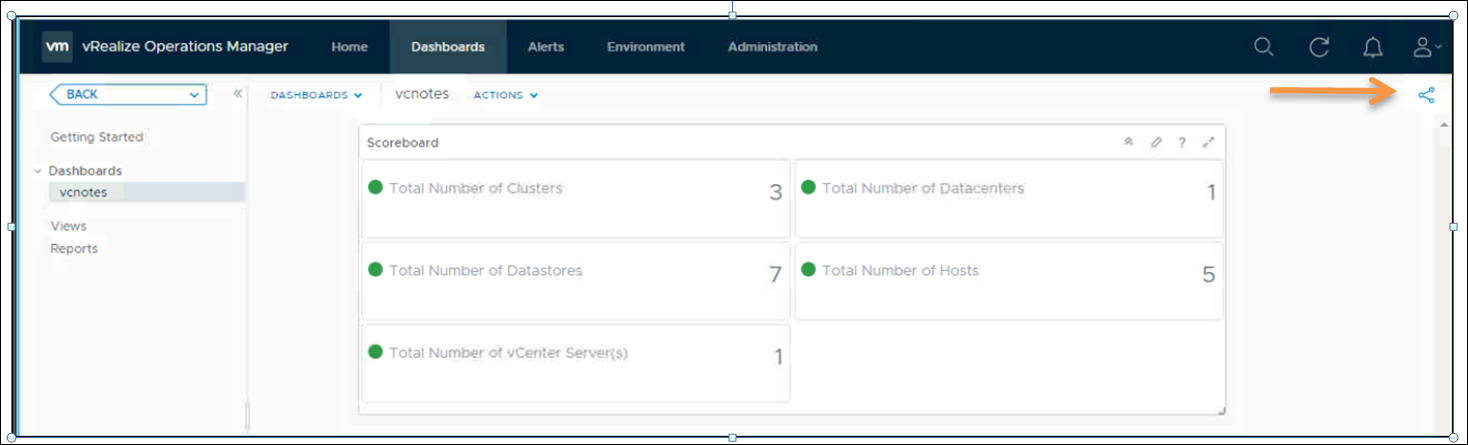
So, story is like, I was working on vRops and noticed that I couldn't share my dashboard which I created with my domain account. Hope you know how to share any dashboard created in vROPS. If not then refer to below image. Click on highlighted icon to share any dashboard.


But, I was not getting this icon. Refer to below image. Do you see any icon here? Of course not.


Now, let's hunt for solution. It is clear that if you don't see any functionality in any application then it can be due to two reasons

1. An application bug
2. Less or no access permissions

First point is ruled out because, I cross checked with admin account that I could see this option with admin account.

If not first then it is second point which is causing the issue here. Now, question is how to resolve it.

Here you go...

Question 1 - What is your user account name?

In my case, it is holadmin. I used VMware HOL to demonstrate this time ;)

Question 2 - This user is part of which "User groups"?

To check this, navigate as shown in below image

So, now we know that my user account that is "holadmin" is part of two groups that are "Everyone" and "HOL Admin Group".

Question 3 - What roles are assigned to these groups?

I would check in "HOL Admin Group" because "Everyone" group is default one. Want to know, how to check? follow below steps-


Now, as you can see in above pic that group "HOL Admin Group" has "Administrator" role. What Next?

Question 4 - This "Administrator" roles has which permissions?

Let's explore it further with below image.


To see all permission, you can check the permission column and to modify, click on EDIT.

Hope you can see that check boxes, Share(internal) and Share (public) are unchecked. This is the reason, I couldn't see the share icon because share dashboard permission was not granted to this group.

Share(Internal) - dashboard can be shared between the users who are part of this group only.

Share(Public) - dashboard can be shared between all the users who are part of any group in vrops.

Check both option (or one, as per your wish) and click on update.

That's it. After update, you will see the share icon as I shown above in very first image.

This was just an example but if you understand it then you will be able to resolve many such issues.

Hope it was useful!

Any thoughts, any comments are welcome!


,

vROPS | how to check manually uploaded PAK file status

 Hello Guys,

VMware has this process mentioned but that is confusing to me and I had to deal it differently to make it happen. So, I thought to write down on my blog. I hope it will help many. Its again amazing that this process is not included in vROPS API guide.

Basically, after manually upload the PAK file or you can say that after pre-staging of PAK file, we need to ensure now that we did it right so we have to use this API way to check that.

Step 1 : Connect vROPS in API as per instructions in vROPS API guide
Step 2 : Again, as per instructions in api guide, use vrops auth token and basic authentication now.
Step 3 : This step, I didn't find anywhere in API guide. You need to modify the command as shown below with GET operation and then hit the search button.
https://myvrops.com:443/casa/upgrade/cluster/pak/vRealizeOperationsManagerEnterprise-81116522883/status

vRealizeOperationsManagerEnterprise-81116522883 > This is the PAK file ID of PAK file which I uploaded manually and want to check if distributed across the cluster or not.
Once I hit the go button, it give me below output.

=======Start here

{

    "cluster_pak_install_status": "CANDIDATE",

   "slices": [

        {

            "slice_address": "172.25.10.11", >>>>>>>>>>>>>>>>>>>>>>>>>>>>>>Node 1

            "http_code": 200,

            "document": {

                "pak_id": "vRealizeOperationsManagerEnterprise-81116522883",

                "pak_state": "DISTRIBUTED">>>>>>>>>>>>>>>>>>>>>>>>>>>>>> It is Okay

                "pak_install_status": "CANDIDATE",

                "pak_distribution_progress": null,

                "current_action": null,

                "node_unchanged": true,

                "failed_details": null,

                "warning_details": "upgrade.pak.warning",

                "orchestrator_action": "UNKNOWN",

                "pre_upgrade_validation_results_available": false,

                "log_links": []

            },

            "content_type": "application/json"

        },

        {

            "slice_address": "172.25.10.12",>>>>>>>>>>>>>>>>>>>>>>>>>>>>>>>>>>>>Node 2

            "http_code": 200,

            "document": {

                "pak_id": "vRealizeOperationsManagerEnterprise-81116522883",

                "pak_state": "DISTRIBUTED",>>>>>>>>>>>>>>>>>>>>>>>>>>>>>> it is again Okay

                "pak_install_status": "CANDIDATE",

                "pak_distribution_progress": null,

                "current_action": null,

                "node_unchanged": true,

                "failed_details": null,

                "warning_details": "upgrade.pak.warning",

                "orchestrator_action": "UNKNOWN",

                "pre_upgrade_validation_results_available": false,

                "log_links": []

           },

            "content_type": "application/json"

        },

        {

            "slice_address": "172.25.2.238",>>>>>>>>>>>>>>>>>>>>>>>>>>>>>>>>>>>Node3

            "http_code": 200,

            "document": {

                "pak_id": "vRealizeOperationsManagerEnterprise-81116522883",

                "pak_state": "DISTRIBUTED",>>>>>>>>>>>>>>>>>>>>>>>>>>>>>>>>>>>>> Okay

                "pak_install_status": "CANDIDATE",

                "pak_distribution_progress": null,

                "current_action": null,

                "node_unchanged": true,

                "failed_details": null,

                "warning_details": null,

                "orchestrator_action": "UNKNOWN",

                "pre_upgrade_validation_results_available": false,

                "log_links": []

            },

            "content_type": "application/json"

        },

        {

            "slice_address": "172.17.1.238",>>>>>>>>>>>>>>>>>>>>>>>>>>>>>>>>>>>>>Node4

            "http_code": 200,

            "document": {

                "pak_id": "vRealizeOperationsManagerEnterprise-81116522883",

                "pak_state": "DISTRIBUTED",>>>>>>>>>>>>>>>>>>>>>>>>>>>>>>>>>>>>> Okay

                "pak_install_status": "CANDIDATE",

                "pak_distribution_progress": null,

                "current_action": null,

                "node_unchanged": true,

                "failed_details": null,

                "warning_details": "upgrade.pak.warning",

                "orchestrator_action": "NO_ACTION",

                "pre_upgrade_validation_results_available": false,

                "log_links": []

            },

            "content_type": "application/json"

        },

        {

            "slice_address": "172.17.1.239",>>>>>>>>>>>>>>>>>>>>>>>>>>>>>>>>>>>>>Node5

            "http_code": 200,

            "document": {

                "pak_id": "vRealizeOperationsManagerEnterprise-81116522883",

                "pak_state": "DISTRIBUTED",>>>>>>>>>>>>>>>>>>>>>>>>>>>>>>>>>>> Okay

                "pak_install_status": "CANDIDATE",

                "pak_distribution_progress": null,

                "current_action": null,

                "node_unchanged": true,

                "failed_details": null,

                "warning_details": "upgrade.pak.warning",

                "orchestrator_action": "NO_ACTION",

                "pre_upgrade_validation_results_available": false,

                "log_links": []

            },

            "content_type": "application/json"

        },

        {

            "slice_address": "172.25.3.238",>>>>>>>>>>>>>>>>>>>>>>>>>>>>>>>>>>>>Node 6

            "http_code": 200,

            "document": {

                "pak_id": "vRealizeOperationsManagerEnterprise-81116522883",

                "pak_state": "DISTRIBUTED",>>>>>>>>>>>>>>>>>>>>>>>>>>>>>>>>>>>>>> Okay

                "pak_install_status": "CANDIDATE",

                "pak_distribution_progress": null,

                "current_action": null,

                "node_unchanged": true,

                "failed_details": null,

                "warning_details": "upgrade.pak.warning",

                "orchestrator_action": "UNKNOWN",

                "pre_upgrade_validation_results_available": false,

                "log_links": []

            },

            "content_type": "application/json"

        },

        {

            "slice_address": "172.17.1.237",>>>>>>>>>>>>>>>>>>>>>>>>>>>>>>>>>>>>>>Node 7

            "http_code": 200,

            "document": {

                "pak_id": "vRealizeOperationsManagerEnterprise-81116522883",

                "pak_state": "NOT_DISTRIBUTED>>>>>>>>>>>>>>>Here is the difference but still OK

                "pak_install_status": "INITIAL",

                "pak_distribution_progress": "6962",

                "current_action": null,

                "node_unchanged": true,

                "failed_details": null,

                "warning_details": "upgrade.pak.warning",

                "orchestrator_action": "NO_ACTION",

                "pre_upgrade_validation_results_available": false,

                "log_links": []

            },

            "content_type": "application/json"

        },

        {

            "slice_address": "172.17.1.248",>>>>>>>>>>>>>>>>>>>>>>>>>>>>>>>>>>>>Host8

            "http_code": 200,

            "document": {

                "pak_id": "vRealizeOperationsManagerEnterprise-81116522883",

                "pak_state": "DISTRIBUTED",>>>>>>>>>>>>>>>>>>>>>>>>>>>>>>>>>>>> Okay

                "pak_install_status": "CANDIDATE",

                "pak_distribution_progress": null,

                "current_action": null,

                "node_unchanged": true,

                "failed_details": null,

                "warning_details": "upgrade.pak.warning",

                "orchestrator_action": "NO_ACTION",

                "pre_upgrade_validation_results_available": false,

                "log_links": []

            },

            "content_type": "application/json"

        },

        {

            "slice_address": "172.25.3.237",>>>>>>>>>>>>>>>>>>>>>>>>>>>>>>>>>Node 9

            "http_code": 200,

            "document": {

                "pak_id": "vRealizeOperationsManagerEnterprise-81116522883",

                "pak_state": "DISTRIBUTED",>>>>>>>>>>>>>>>>>>>>>>>>>>>>>>>>>>> Okay

                "pak_install_status": "CANDIDATE",

                "pak_distribution_progress": null,

                "current_action": null,

                "node_unchanged": true,

                "failed_details": null,

                "warning_details": null,

                "orchestrator_action": "UNKNOWN",

                "pre_upgrade_validation_results_available": false,

                "log_links": []

            },

            "content_type": "application/json"

        },

        {

            "slice_address": "172.25.1.244",>>>>>>>>>>>>>>>>>>>>>>>>>>>>>>>>>>>>Node 10

            "http_code": 200,

            "document": {

                "pak_id": "vRealizeOperationsManagerEnterprise-81116522883",

                "pak_state": "DISTRIBUTED",>>>>>>>>>>>>>>>>>>>>>>>>>>>>>>>>>>>>> Okay

                "pak_install_status": "CANDIDATE",

                "pak_distribution_progress": null,

                "current_action": null,

                "node_unchanged": true,

                "failed_details": null,

                "warning_details": null,

                "orchestrator_action": "UNKNOWN",

                "pre_upgrade_validation_results_available": false,

                "log_links": []

            },

            "content_type": "application/json"

        }

    ],

    "cluster_data": {

        "cluster_action_failed": false,

        "cluster_action_failed_time": null,

        "cluster_action": "NO_ACTION"

    }

}

 =======End here

Please ignore any spelling or formatting slip-up due to lack of time but technical stuff is never compromised. Feel free to write me back in case of any confusion.