Showing posts with label PowerShell. Show all posts
, , ,

Move multiple disks from one vm to another vm (KB#00102)

Hello Folks,

Adding another solution for one unique challenge I got from my customer. 

Challenge - Customer used to move multiple vmdk files from one vm to another vm in vcenter server. Actual challenge is the time in hand for this operation and number of vmdks to remove are always around 15, 18 or 20 per vm. This activity used to have multiple VMs. This become more challenging at the time of roll back once we have moved all disks from source to target vm. That much of vmdks to move and in short period of time can lead to confusion and human error too.

Solution - I created below powercli script which drastically decrease the time require in such activity and roll back too become very easy with it. Chance of human error is 99% lesser now.

Below is the code -

Function move-vmdk{
clear
$time
= Get-Date
#It will record the timestamp before starting this activity

Write-Host
"Current time is $time"
$sourcevm
= Read-Host "Enter the source VM Name "
Write-Host
"Total number of disk on source vm is" (Get-HardDisk -VM $sourcevm).count -ForegroundColor yellow
$fd
= Get-HardDisk -VM $sourcevm
$TargetVM
= Read-Host "Enter the target VM Name "
Write-Host
"Total number of disk on target vm is" (Get-HardDisk -VM $TargetVM).count -ForegroundColor Green
Write-Host
"This script works with file name of disk to move so please mention the filename of each disk to move in notepad and save it in C:\temp with disklock.txt name"
#save the disk’s location for all the targeted disks to path C:\Temp in notepad file named diskloc.txt
$diskfile
= Get-Content -Path C:\Temp\diskloc.txt
$confirm
= Read-Host -Prompt "Are you sure you want to process for this disk migration (Y/N) "
If
($confirm -eq "y") {
Foreach
($loc in $diskfile){
$trgVM
= Get-VM -Name $TargetVM
$disk
=get-vm -name $SourceVM | Get-HardDisk | Where-Object {($_.Filename -eq $loc)}
Remove-HardDisk
$disk -Confirm:$false
New-HardDisk
-VM $trgVM -DiskPath $loc
Write-host
(" ")
}
}
$time
= Get-Date
#It will record the timestamp after completion of this activity
Write-host
"Operation has been completed succesfully"
Write-Host
"Current time is $time"
Write-Host
"Total number of disk on target vm is" (Get-HardDisk -VM $TargetVM).count -ForegroundColor Green
Write-Host
"Total number of disk on source vm is" (Get-HardDisk -VM $sourcevm).count -ForegroundColor yellow
}

Below is the sample output
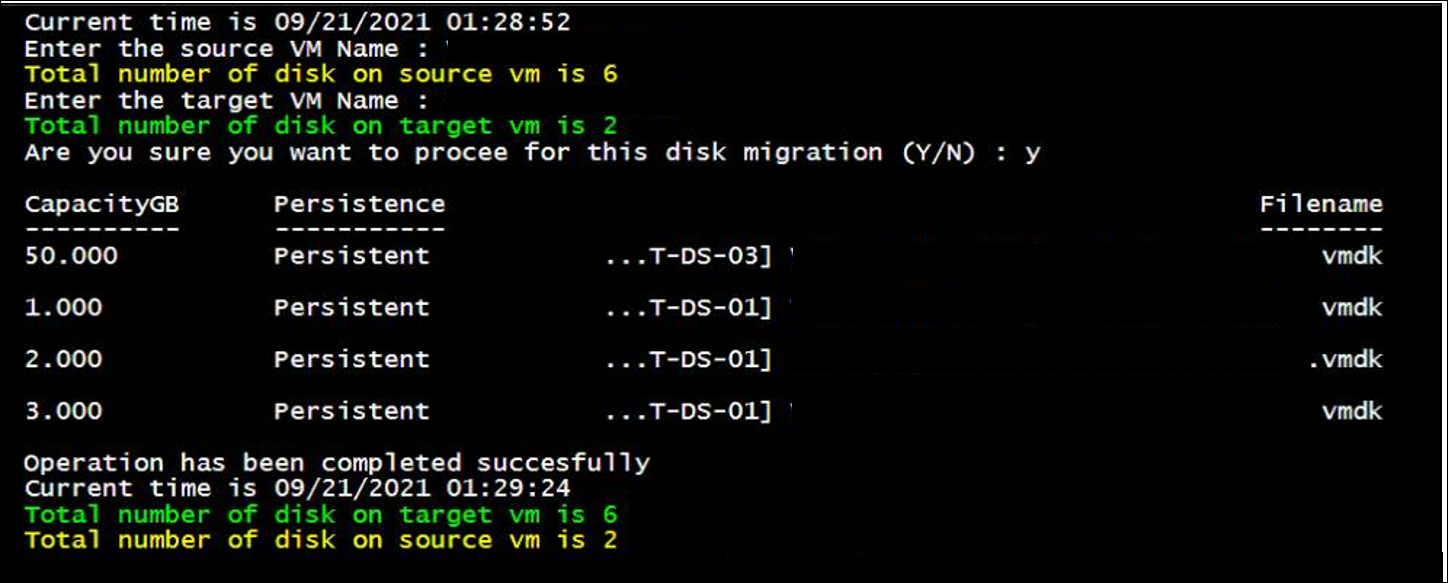
Note that time taken is just 32 seconds to move four VMDK files. Just to add, size of vmdk doesn't change the time for this migration.

Hope you will find it useful if you too have such requirement! Any doubt or thought, plesae feel free to comment.

Cheers!


, ,

PS | How to get HA restarted VM's Org and OrgvDC info with VM Name

Overview

You will see many blogs giving solution for fetching the VM names which are restarted by HA in event of esxi host failures using Get-VIEvent powercli command. But the extracted VM Name too is not in well format to use as it is. You have to use excel and text to column and then extract the VM Name etc. For me, I have vCD also so at the time of ESXi host failures and HA events, I not only need to fetch the VM Name but also Org and OrgvDC info to share it with my customer. It becomes more lengthy for me and I need to make it quick. So it is extended solution for such kind of scenario. Hope you will find it useful.

Let's see how I could do it using powershell.

Script

#Start here

Write-Host "This script will help you out to have VM name restarted by HA due to esxi host failuers" -ForegroundColor Yellow

Function Get-HAVM{
$Date=Get-Date
$HAVMrestartold=1
$raw = Get-VIEvent  -maxsamples 10000000 -Start ($Date).AddDays(-$HAVMrestartold) -type warning | Where {$_.FullFormattedMessage -match "restarted"} |select CreatedTime,FullFormattedMessage |sort CreatedTime -Descending
$raw.vm.name
Remove-Item -Path C:\Temp\vmlist.csv
$raw.vm.name | Out-File C:\Temp\vmlist.csv
}
Get-HAVM
$allvms = Get-Content -Path C:\Temp\vmlist.csv
$vms = Get-VM -Name $allvms
$myView = @()
foreach ($vm in $vms){
$Report = [PSCustomObject] @{
 VM_Name = $vm.Name
 Org_Name = $vm.Folder.Parent.Parent.Name
 OrgvDC_Name = $vm.Folder.Parent.Name
}
$MyView += $Report
}
$myView | Out-GridView

#End here

Any doubt? Comment box is yours :)

Let's give it more power

If you have smtp configured in your environment then simply you can mail it from the same script using Send-MailMessage command but for that you might have to do some tweak in above script. 

Hint is, You have to save final report. Change in the last line of above script like

$myView | Out-File C:\Temp\vmsrestartedbyHA.csv

then use below command

Send-MailMessage -From 'gautam.johar@vcnotes.in' -To 'my.reader@home.com', 'myreader2@home.com' -Subject 'HA Event is triggered and VM list is attached' -Body "Please find the attachment" -Attachments C:\Temp\vmsrestartedbyHA.csv -Priority High -DeliveryNotificationOption OnSuccess, OnFailure -SmtpServer 'smtp.vcnotes.in'

Change wherever applicable.

If you are good enough in PowerShell then you can have many ways to enhance the ideas. For me this is basic script which is working fine for me.

Side Note

I created this script to run perfectly in PowerShell ISE so run in that please or if you have any error in running it in simple powershell cli terminal then you might need to fix the visible errors.

Good Luck!


,

PS | To extract DRS rules with VM names

Hi Guys,

This is not a big thing but still I wanted to document it for my own reference. I got a request like which VMs are in which DRS rules so I got below script.

#Start here

$VC = Read-host "Enter the FQDN\IP of vCenter Server"

Connect-VIServer $VC
$DRSRules = Get-Cluster | Get-DrsRule
$Results = ForEach ($DRSRule in $DRSRules)
     {
    "" | Select-Object -Property @{N="Cluster";E={(Get-View- Id $DRSRule.Cluster.Id).Name}},
    @{N="Name";E={$DRSRule.Name}},
    @{N="Enabled";E={$DRSRule.Enabled}},
    @{N="DRS Type";E={$DRSRule.KeepTogether}},
    @{N="VMs";E={$VMIds=$DRSRule.VMIds -split ","
     $VMs = ForEach ($VMId in $VMIds)
        {
        (Get-View -Id $VMId).Name
        }
      $VMs -join ","}}
     }
$Results | out-gridview

#End here

Another window will open and copy entire output into excel if you want.

Cheers!


, ,

Automation | Add vCPU in VM if usage is more than 90%

Hi Guys,

I got this question from one of the VMware group so I thought to add it in my blog and then share. Automation of CPU addition is not tough but adding it with condition can be little challenging. You can do it with vROPS very easily but if you don't have vROPS then I have solution for you.

Pre-requisite is to enable hot add for CPU.

Below is the base code- 

Connect-VIServer vcenter_ip #to connect vcenter
$VM = Get-VM VM_Name #to get the vm name
#to convert the value in GHz. Default value comes in MHz
$maxcpu = ($vm.Extensiondata.Summary.Runtime.MaxCpuUsage)/1024
#to convert number of cpu into GHz speed. Here you need to replace 2.80 as per physical host's core speed at your end
$cpus = ($vm.Extensiondata.summary.config.NumCPU)*2.80
# to have percentage value
$cpulimit = $cpus*90/100
#below is the hot add cpu command
if ($maxcpu -gt $cpulimit){
get-vm $vm | Set-VM -NumCpu 2 -Confirm:$false #Current value is 1 and it will change it to 2
}

Now the question is how to automate it,

you can create a loop so that it can run infinite. I have created below function

Connect-VIServer vcenter_ip
Function AutoAddCPU{
$VM = Get-VM VM_Name
#to convert the value in GHz
$maxcpu = ($vm.Extensiondata.Summary.Runtime.MaxCpuUsage)/1024
#to convert number of cpu into GHz speed
$cpus = ($vm.Extensiondata.summary.config.NumCPU)*2.80
$cpulimit = $cpus*90/100

if ($maxcpu -gt $cpulimit){
get-vm $vm | Set-VM -NumCpu 2 -Confirm:$false
}
AutoAddCPU
}
AutoAddCPU #this is not a mistake. Use it as it is.

Now the problem is, how will it monitor that particular VM continuously.

Simple solution, use task scheduler from where you can access vcenter server. Add above script in task scheduler and then run it once, it will run forever.

Another problem is, what if that server or jump server restart then it will break the script. Solution is to create task scheduler to run this script at every system startup.

There must be many questions here. For example, you might need to monitor many VMs at the same time, you want to monitor the cpu usage if goes above than 95% and more....

This is the base solution I have provided and can be customized or enhance as per individual need.

If you have such requirement too then feel free to write me back. Will be glad to assist. 

If  anyone wants the same thing from vrops then let me know, I will create one post on that as well. Using vrops is more authentic and efficient way to do it.


PS | Ping an entire subnet

Hello Guys,

Just wanted to update my notes with this small script but with big use. You can initiate and save entire output in a file with the help of below lines-

#start here
$subnet = "172.26.193"   #Just mention first three octet of any subnet
$start = 1
$end = 254  #Modify the end IP as per your requirement
$ping = 1
$OutPath ="C:\Temp\172.26.193"    #Modify the file location as per your wish and then run into guys!

While ($start -le $end) {
$IP = "$subnet.$start"
$Test = Test-Connection -ComputerName $IP -count $ping -Quiet
Write-Host "$IP,$Test"
Add-Content -LiteralPath $OutPath -Value "$IP,$Test"
$start++
}
#End here


Thank you,
vCloudNotes
, ,

NSX-T | Getting Started with PowerCLI

Hi Guys,

I am working on PowerCLI for NSX-T and trying to do all the operations as we could do in NSX-V. it is bit different yet simple so I thought to share what I have learned so far. below is a glimpse of the same. 

Also, there is a good article from VMware for the beginners to understand the same. I too learned from here but I was able to do more operations by understanding the given basics in the above link.

Explore it and let me know if you need any assistance with it. 

To connect NSX-T manager in PowerShell

#Connect-NsxtServer -server FQDN\IP


To get NSX-T manager details
function nsxnode{$nodesvc = Get-NsxtService com.vmware.nsx.node
$nodesvc.get()


To get the transport zone name and its relevant id
$tzone = Get-NsxtService com.vmware.nsx.transport_zones
(($tzone.list()).results) | Select display_name, ID


To get the name of all logical switch's name

 $tls = Get-NsxtService com.vmware.nsx.logical_switches
(($tls.list()).results).display_name


To get the name of all logical routers' name
$Tier1 = Get-NsxtService -Name com.vmware.nsx.logical_routers
($Tier1.list()).results.display_name


To create Tier-1 or Tier-0 router
$rname = Read-Host "Tell me the Tier-1 router name to set"
$tier1 = Get-NsxtService -Name com.vmware.nsx.logical_routers
$createt1 = $tier1.Help.create.logical_router.Create()
$createt1.display_name = $rname
$createt1.router_type = "TIER1" #Change it to TIER0 if you want to create Tier0 router
$tier1.create($create1)


To create logical switch
$segments = Get-NsxtService com.vmware.nsx.logical_switches
$createls = $segments.Help.create.logical_switch.create()
$createls.admin_state = "UP"

$createls.transport_zone_id = "Enter ID here"
$createls.display_name = "Enter any name here"

$createls.replication_mode = "MTEP"
$segments.create($createls)


To delete logical switch
$logswitchname = Read-Host "Enter the LS name to delete"
#Delete Logical Switch
$logswitchsvc = Get-NsxtService -Name com.vmware.nsx.logical_switches
$logswitches = $logswitchsvc.list().results
$logswitch = $logswitches | Where-Object {$_.display_name -eq $logswitchname}
$logswitchsvc.delete($logswitch.id)


That's it for now but I will keep on adding in the list. In my next post, you will be seeing like connect LS with tier-0 or tier-1 and connect LS with VM with all IP configuration, etc.


Thank you,
vCloudNotes